Guide
How to use the online protractor
Three clicks gets you an angle. The rest of this page is about getting a good one — and where to go when the job is a photo, a PDF, a scale, or a hand-in.
1. Open the tool and load something to measure
Go to the protractor. Choose a file, drag one onto the page, paste a screenshot with Ctrl/Cmd + V, or pick a bundled example such as Right angle. PNG, JPG, WebP, GIF, SVG and PDF all work. Large photos are reduced to 4000 pixels on the long edge, which does not change any angle you measure. You can also skip a file and measure on a blank canvas.
Nothing is uploaded while you measure. Files stay in the browser. There is no account and no paywall.
2. Click the vertex first
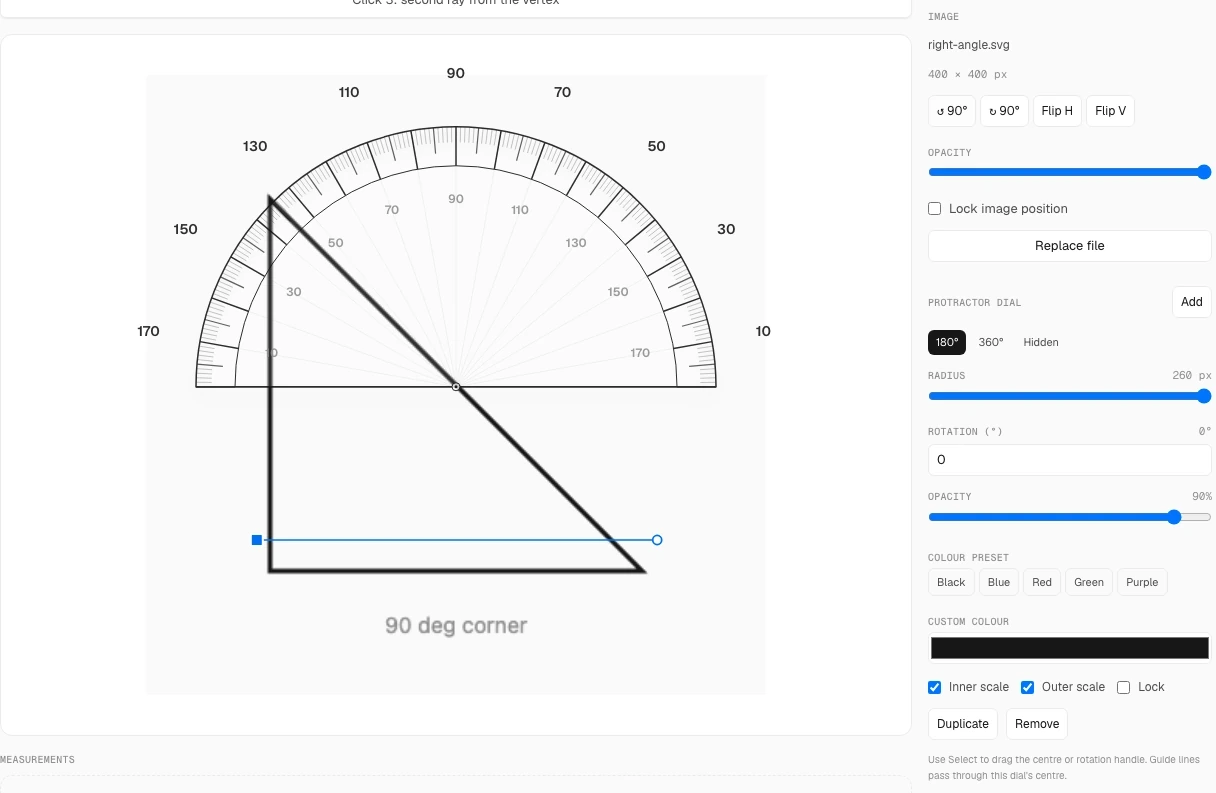
Select the Angle tool. Click the corner you mean to measure — the vertex — before you click either side. A hint above the canvas walks through “vertex, then ray, then ray” until the first measurement is finished.
3. Place one point far along each ray
Click a point on the first edge, then a point on the second. Put those points as far from the vertex as the edge allows. Long rays shrink the ± figure; short rays inflate it.
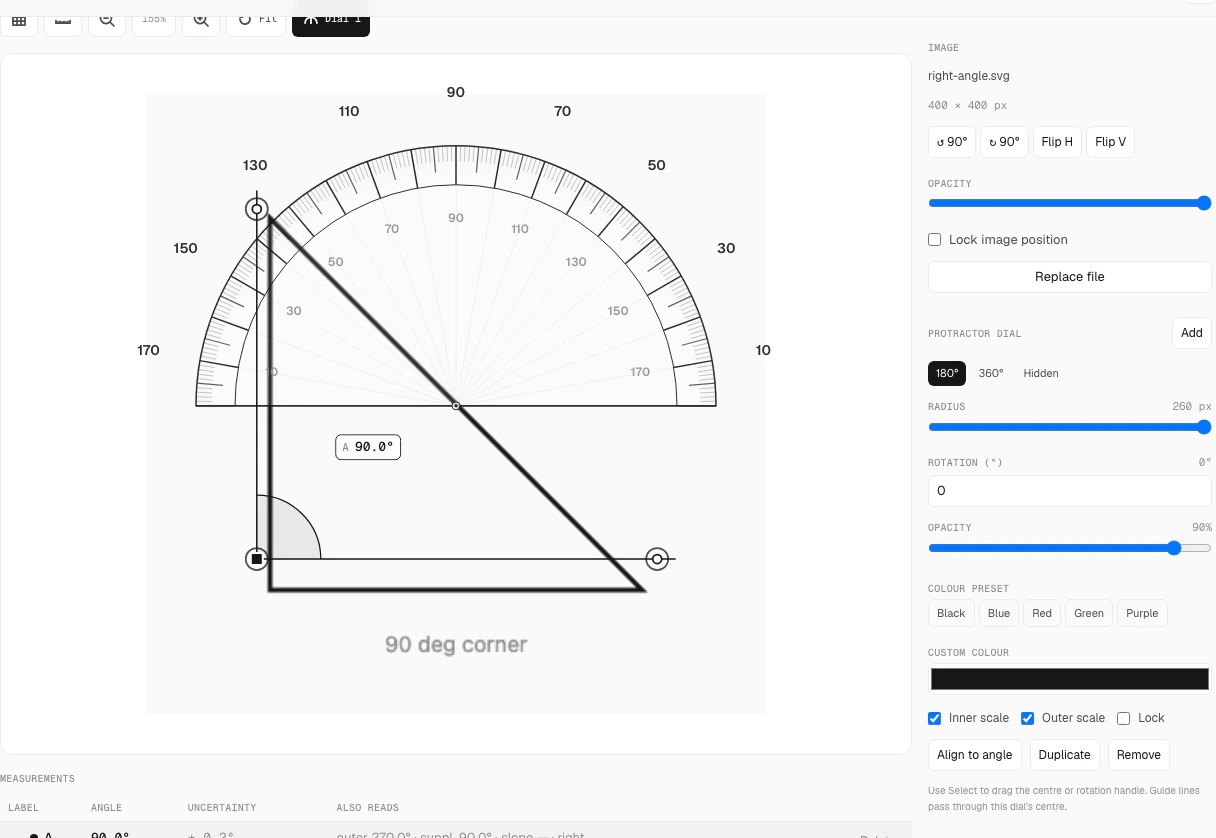
4. Read the angle and refine with ±
The overlay and the measurements table show the inner angle plus a ± uncertainty from your ray lengths and zoom — not a marketing accuracy claim. Drag a handle to adjust, or click a handle and nudge with the arrow keys (Shift for one-pixel steps). Zoom with pinch or the + / − buttons; zooming in actually tightens the reading. Seeaccuracy and limits.
Watch a first measurement
The clip is silent. It shows the same four steps: open an example, click the vertex, place both ray points, then read the angle and ±. Use the player controls; it does not start on its own.
Measuring several angles at once
Keep using Angle — each set of three clicks adds a row. For a connected figure, use Chain: click along the path and press Enter (or Finish chain). Close the shape and the table checks the interior-angle sum against (n − 2) × 180°.
Lengths, PDFs, photos, and exports
Angles never need a scale. Lengths do — that workflow isscale calibration. Photograph-specific placement and perspective are inmeasure angles in photos. Multi-page PDFs are in the PDF workflow. Choosing PNG, CSV, or a report isexport for homework and reports.
| Format | Use it for |
|---|---|
| PNG 1× / 2× / 4× | An annotated image for homework or a report |
| SVG | Vector output for a drawing program |
| CSV | Every value in a spreadsheet — opens directly in Excel (UTF-8 with BOM) |
| JSON | Saving the workspace to reopen and keep editing |
| Print / Save as PDF | A documented copy, via your browser's print dialog |
Keyboard shortcuts
| Key | Action |
|---|---|
| V | Select and move |
| H | Hand tool — pan the canvas |
| A | Angle tool |
| C | Chained angles |
| L | Length tool |
| K | Set a scale |
| Space + drag | Pan the canvas (desktop) |
| Middle-click + drag | Pan the canvas (desktop) |
| Arrow keys | Nudge the focused point |
| Shift + arrows | Fine nudge, one pixel |
| Shift while dragging | Invert the snapping setting |
| Enter | Finish a chain |
| Esc | Cancel the current placement |
| Delete | Remove the selected measurement |
| Ctrl/Cmd + Z | Undo |
| Ctrl/Cmd + Shift + Z | Redo |
| Ctrl/Cmd + V | Paste a screenshot |
On a phone or tablet
The toolbar and sidebar stack vertically on narrow screens. Use pinch-to-zoom on the stage (two fingers), tap Hand then drag with one finger to pan when zoomed in, and tap handles to place points. For the tightest reading, focus a handle and nudge with a Bluetooth keyboard if you have one.
If a panel feels cramped, scroll so the stage is centred before placing points — clicks use viewport coordinates.
If something goes wrong
Closed the tab by accident? Reopen the page and you will be offered your unsaved work back. Reading looks wrong? Check that the vertex is on the actual corner and that the photo was taken square-on — perspective is the error that zooming cannot fix.